Capitally is the only app out there that gives you full control over how taxes are calculated and estimated. No matter where you are in the world, you can define your own tax rules by creating a tax preset, selecting an existing one, or importing one created by someone else.
Capitally offers a comprehensive tax handling system with flexible cost basis methods including FIFO, LIFO, HICO, LOCO, and Average Cost Basis (ACB). You can choose from built-in national tax presets or create your own, tailoring the rules to your specific needs
To get started, use one of the built-in presets or create your own Tax Presets in the Settings -> Taxes section. These presets define the rates for taxing different types of transactions and assets. Assign these presets to your Accounts. If an account is tax-sheltered, like a retirement account, you might not need a preset for it.
What a preset covers — and where it stops — is documented inside the preset. Open one in Settings → Taxes and it opens on its Details tab, where its note sits next to the rules it describes. Every built-in preset can be read the same way in the demo project, with no account. Presets change more often than this article does, so the note is the authority on what a preset handles.
After setting up your Tax Presets, you can view the calculated tax metrics in several places:
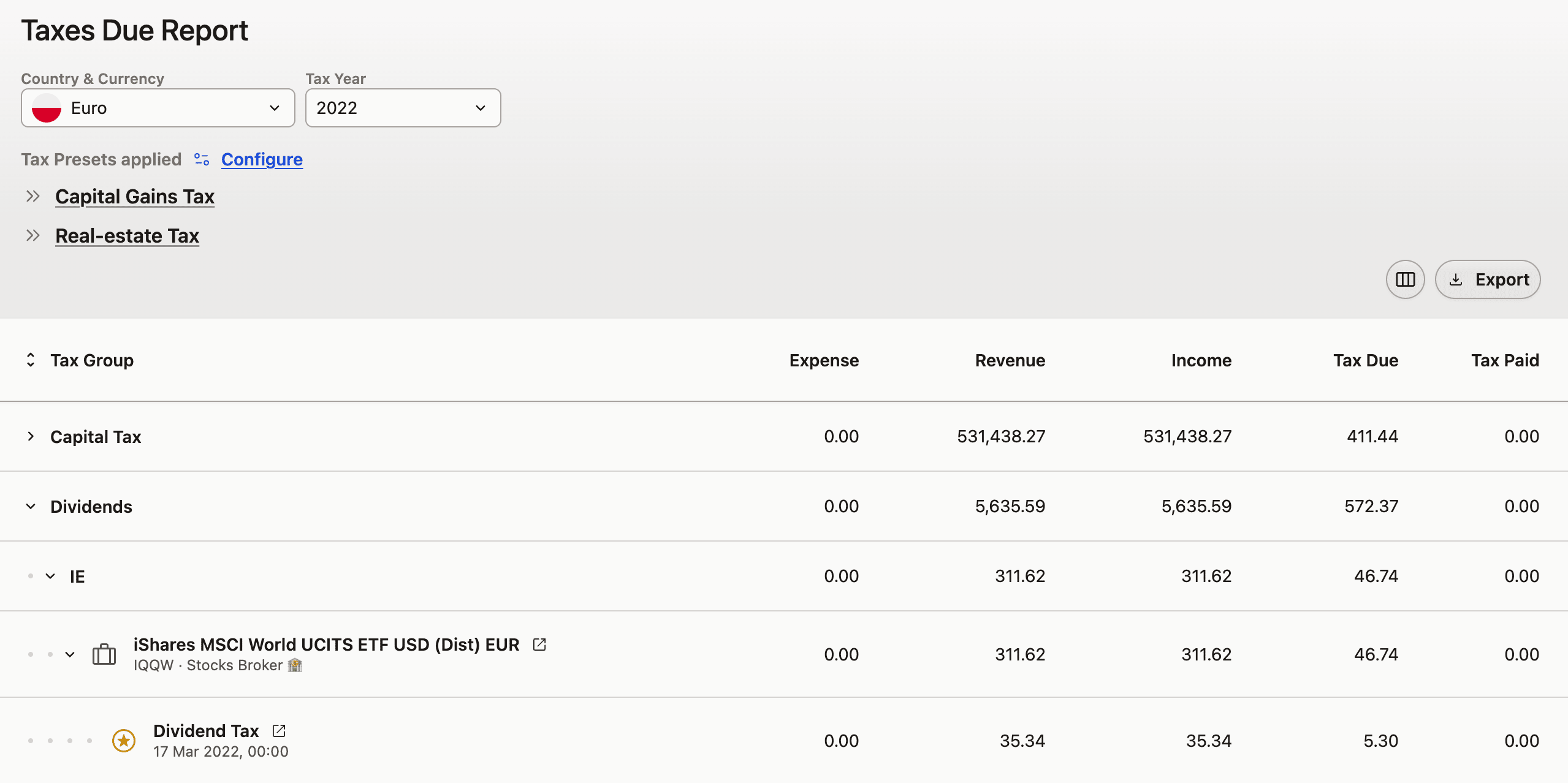
- Reports -> Taxes Due Report: This report provides the accrued revenue, expenses, and taxes for each country and year, broken down by Tax Groups if your preset uses them. This is the go-to report during tax season.
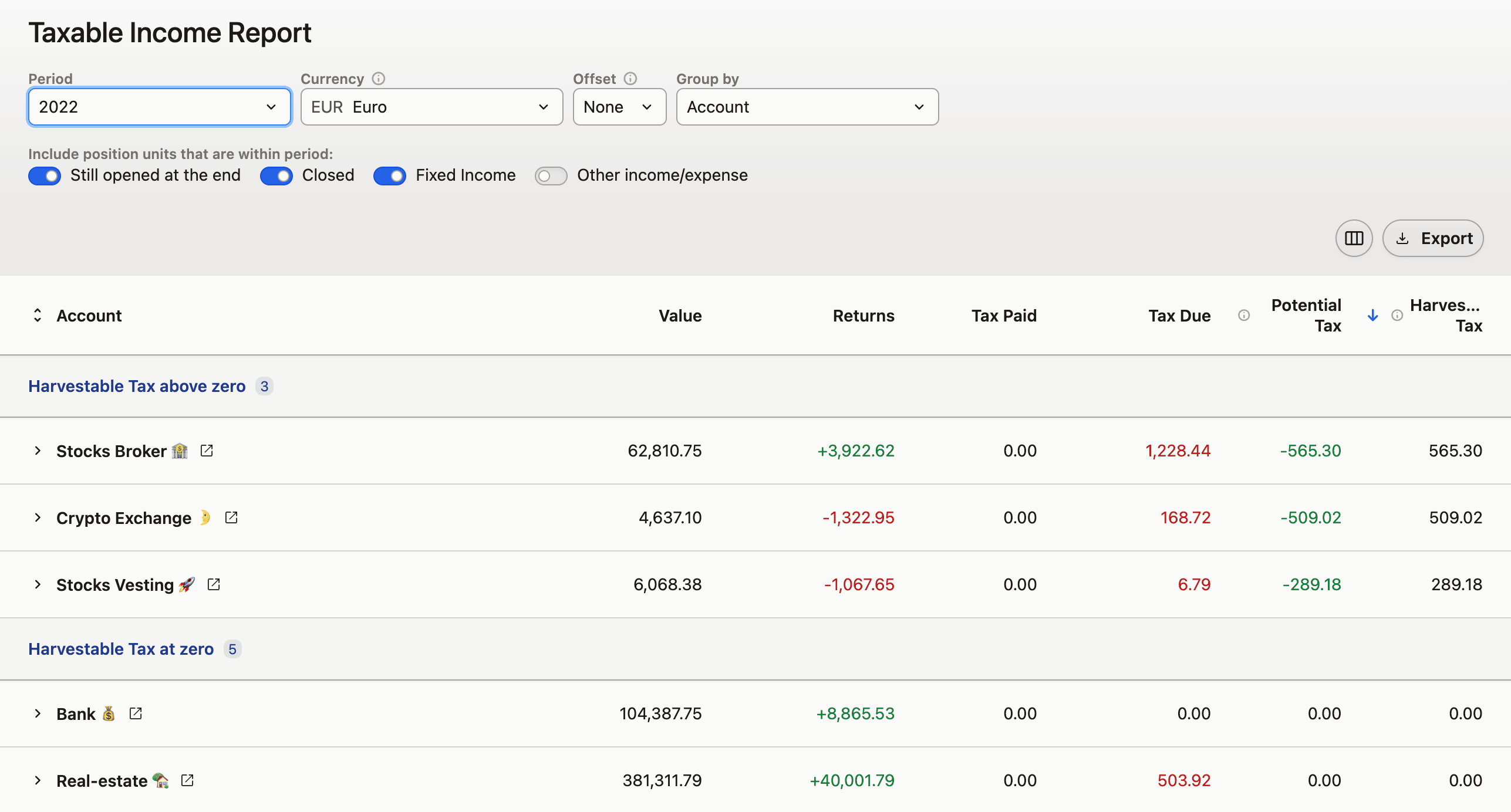
- Reports -> Taxable Income Report: This report allows you to compare and understand taxes at a higher level, accumulated across your entire portfolio and converted to a single currency of your choice.
- Portfolio -> Tax Due: This section lets you freely analyze and compare tax metrics across your entire portfolio.
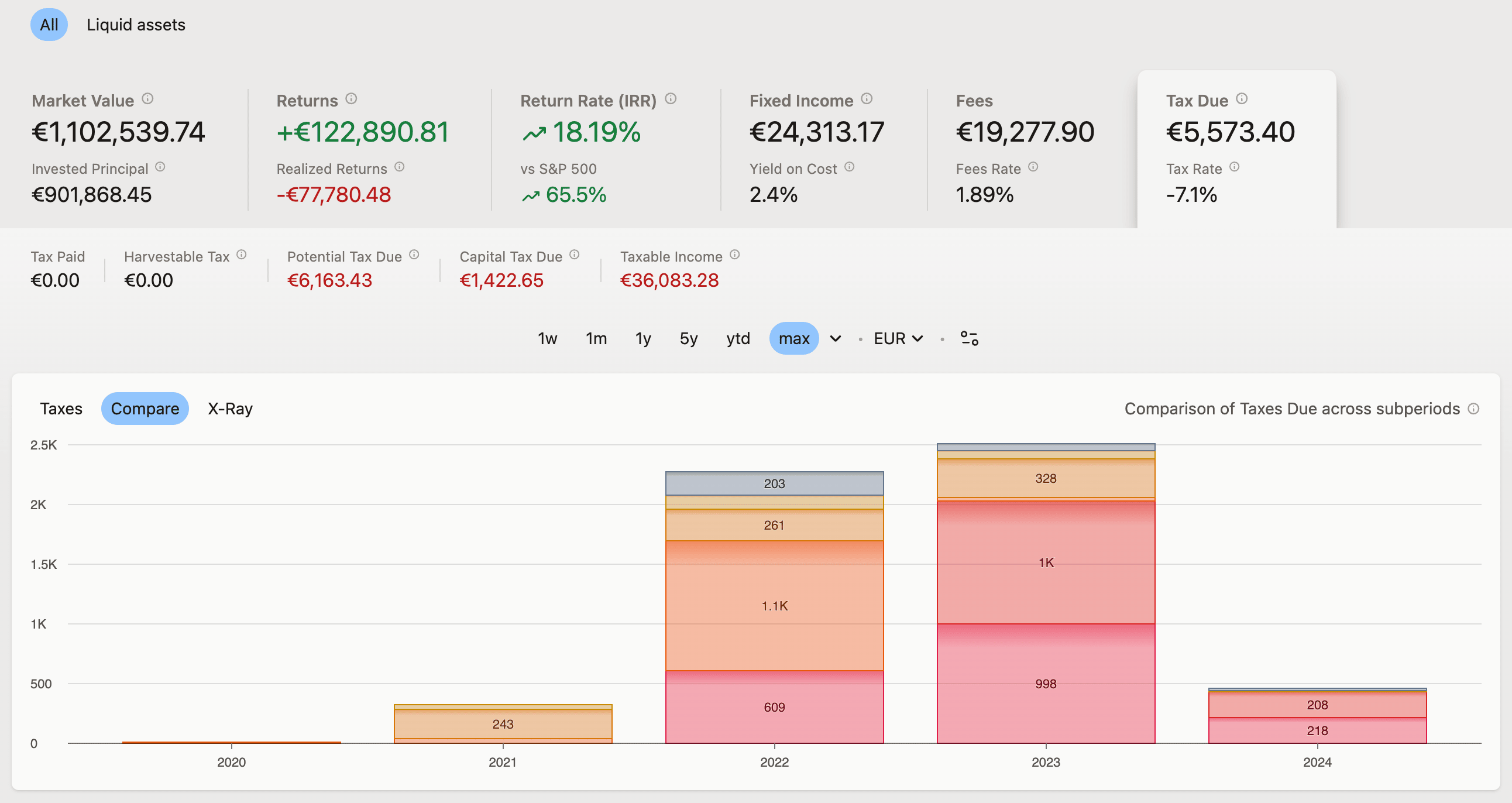
The tax metrics included are:
- Tax Due: The overall amount of tax to be paid within the period.
- Tax Paid: The amount of tax you've already paid, such as Withheld Tax on Dividends.
- Tax to Pay: Simply Tax Due minus Tax Paid.
- Capital Tax: Tax on the value of Capital you own, also known as Wealth Tax or Estate Tax.
- Taxable Revenue / Expense / Income: The sum of all revenue/expenses from transactions that were taxed within the period.
- Potential Tax: The tax you would have to pay if you sold all your currently owned assets at the end of the period.
- Harvestable Tax: The maximum amount of tax you could potentially save by selling assets at a loss, considering the FIFO (First-In-First-Out) order of your positions. This can help you optimize your tax strategy by offsetting gains with losses.
Including taxes in return calculations
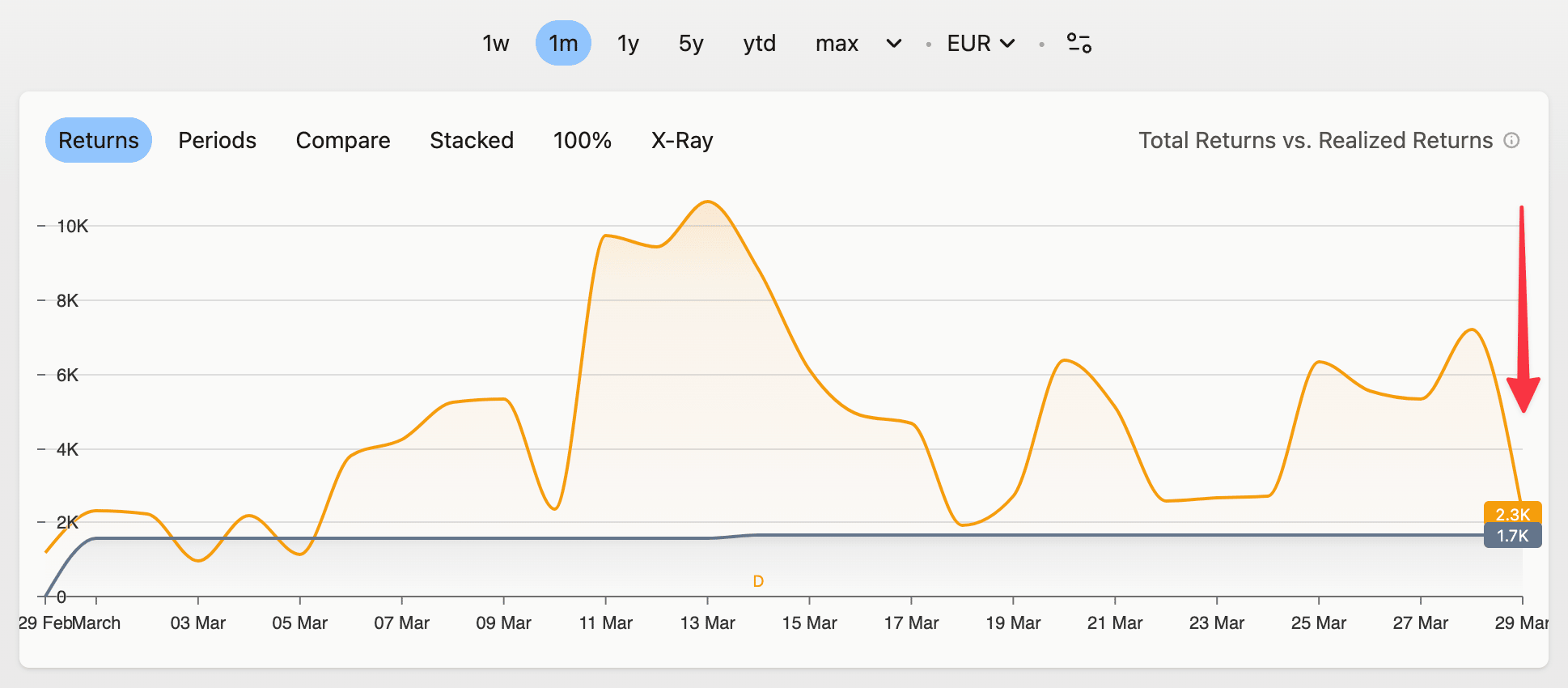
You can include both Due and Potential Tax when calculating your returns for a more accurate picture of your actual performance.
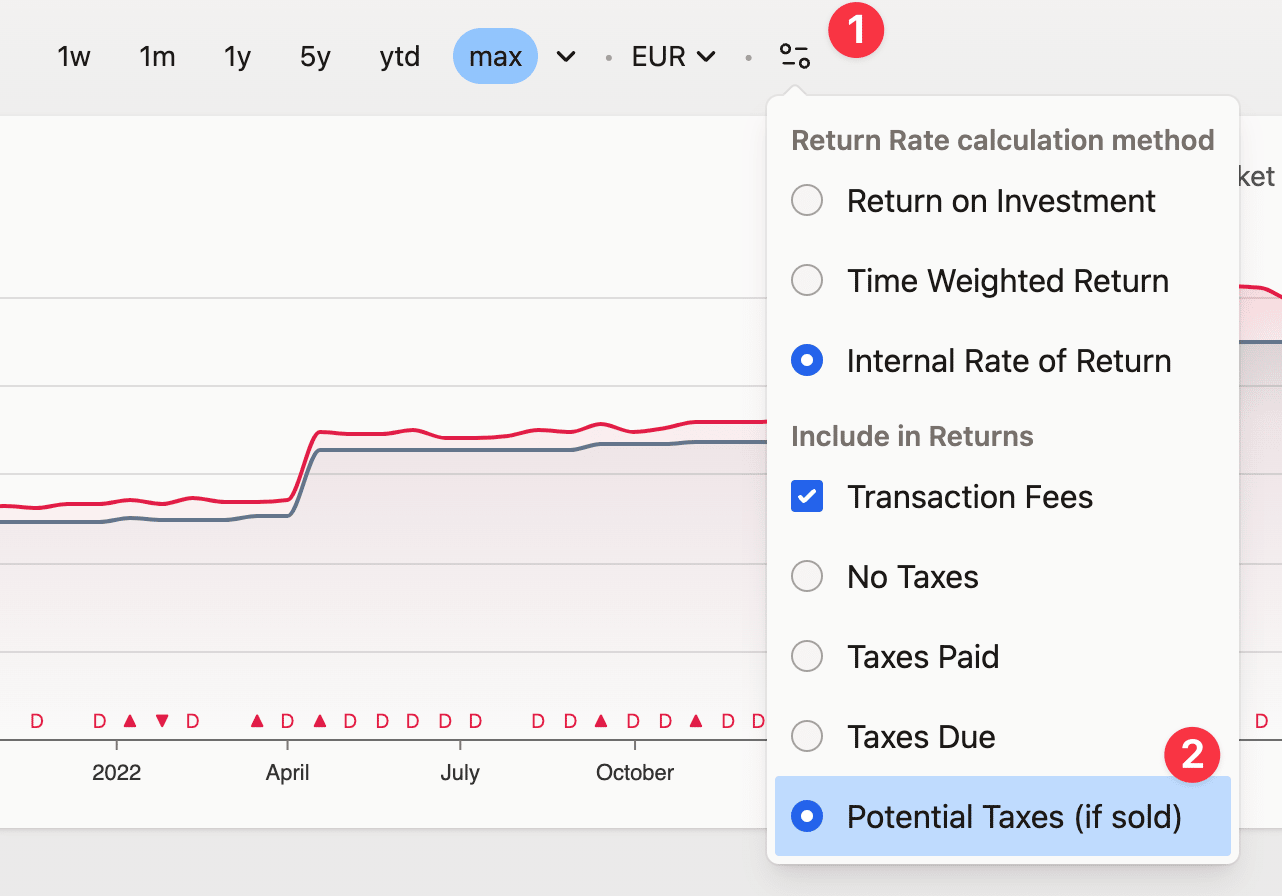
Keep in mind that Potential Tax simulates a sale of all your positions on the last day of the analyzed period, which may result in a big drop at the end of the chart. When including Potential Tax, it's best to analyze a period of at least a year.
Tax Due, Tax Paid, and automatic tax
Three separate mechanisms produce tax numbers, and none of them overwrites another. A tax preset calculates what you owe your revenue office — that is Tax Due. The Tax Paid field on a transaction records what was already withheld at source. Tax paid on automatic income is a placeholder percentage applied only to dividends Capitally generates itself.
- Tax preset — configured in Settings → Taxes and assigned to accounts. It produces the Taxes Due Report and the Tax Due column in the portfolio. It never writes into Tax Paid.
- Tax Paid on a transaction (withholding tax) — tax already deducted by your broker or a foreign government, for example 15% withheld on a US dividend. It arrives with a broker import, or you type it in. A preset never overrides or interacts with it.
- Tax paid on automatic income — set on Account → Positions or Asset → Positions. It applies only to dividends Capitally generates itself: estimated payouts and payouts pulled from market data, before real broker data is imported.
There is no automatic per-country withholding rate. Withholding data comes from your broker statements, and imported files are treated as the source of truth — if a broker export has no withholding column, the imported dividend shows 0 in Tax Paid and the automatic percentage does not fill it in. Enter it yourself: keep the dividend value gross, and put the withheld amount in Tax paid / withheld.
Upcoming and estimated dividends have an empty Tax Paid because nothing has been withheld yet. Tax Due, by contrast, appears as soon as a preset is assigned to the account.
Which one enters returns, and when
The two hit your returns at different moments. Tax Paid enters as a cash flow at the moment of its own transaction, because that is when the money was taken from you. Tax calculated by a preset enters when the position closes — or at the end of the analysed period for still-open positions — because that is when you actually pay it.
So use Tax Paid for withholding tax on dividends, and a tax preset for capital-gains tax and for after-tax returns. Once a preset is configured, taxes due and potential tax on open positions are calculated for you. Do not try to model capital-gains tax with per-transaction Tax Paid entries.
Where to see total withholding tax paid
Three places, depending on how you want it aggregated:
- Tax Paid column in the Portfolio — the withholding tax aggregated per position.
- Taxable Income Report — Tax Paid totals across the whole portfolio, converted to one currency.
- Tax to be Paid column in the Taxes Due Report — Tax Due minus Tax Paid, the liability remaining after tax already withheld at source. This is the same figure as the Tax to Pay metric listed above.
When the tax report comes out empty
A correctly written preset can still produce nothing at all. Four causes account for almost every empty Taxes Due Report: the preset is not assigned to the account, the positions sit on <No Account>, the assets involved are cash, or the tax group has no rule filling it.
The preset is not assigned, or positions sit on <No Account>
A tax preset is assigned to an account, so anything on <No Account> is never taxed, however the preset is written. This is the most common cause by a distance. Check the account settings for the preset assignment first, then check that your positions actually sit on that account — select the affected positions in the Portfolio and change their account in bulk.
Cash assets are not taxed
Cash assets are excluded from preset evaluation by design: they generate large volumes of internal transactions that would distort tax reports, and there is no setting to change it. Currency conversions therefore produce no taxable event.
If your jurisdiction taxes FX gains on conversions — German §23 EStG / Anlage SO, for instance — model the currency as an asset instead. Create a custom asset of type Deposit or Other, set it to manual pricing with price = 1 and the currency set to the foreign currency, and book Buy and Sell transactions there. Transactions on a custom asset are evaluated by the preset rules. The trade-off is that cash tracking stops for that asset, so the holding cannot be used to pay for purchases denominated in that currency.
The transaction type is never taxed
Balance and Transfer transactions are not taxed. A position opened by one can still be closed by a Sell, and the opening expense is included then — see Revenue and Expense.
A Convert / Move / Spinoff is not taxed either for the lots it hands over, which is every conversion with Carry acquisition date and lots to the target asset on. Four things on such a transaction are still disposals and do report: residual cash, quantity arriving at the target that covers a short there, Tax Paid / Withheld recorded on the transaction, and a conversion delivering no target quantity at all. Turn the toggle off and the whole conversion becomes an ordinary disposal.
The tax group has no rule filling it
Tax groups are accumulators, filled by Apply Tax statements inside preset rules. Duplicating a tax group does not create a rule that fills it, so a group added on its own stays empty.
Recording tax payments and refunds
Tax Paid is a signed field: positive is tax paid or withheld, negative is a refund or credit. Returns and net-income calculations handle the negative correctly, so a refund increases income and returns rather than reducing them.
A standalone tax payment not tied to a trade — a portfolio-wide wealth tax, the Dutch vermogensbelasting — goes in as an Other transaction with the transaction value set to 0 and the amount in Tax Paid. To record a payment made to the revenue office separately from any investment, use either a Transfer transaction with a tag or a zero-value income transaction with the amount in Tax Paid; both keep the payment out of your investment returns. If the tax recurs every year, model it in the preset with the Schedule Capital Tax statement instead of booking it by hand.
A refund or rebate — a Belgian 30% pension tax rebate, say — is the same recipe with the sign flipped: an Other transaction in your home currency in any account, value 0, and Tax Paid set to the negative of the rebate (-1234 for a rebate of 1234). It is classified as an other-tax event and flows into returns.
Imports strip the minus sign by default
The generic import column mapping applies an Absolute value transform to the Tax Paid column, which turns every refund into a payment with no warning. Either remove that transform from the Tax column in your import mapping before importing, or edit the affected transactions afterwards and re-enter the tax as a negative number.
How trade and settlement dates are handled?
Some tax jurisdictions may require you to take into account the Trade Settlement date and/or use a currency rate from a different date than the trade occurred on.
Capitally lets you do both, making the Settled Date available in both tax reports.
Settlement dates are calculated as follows:
- Transactions other than Buy & Sell use the Trade Date
- Transactions on US Assets on and after 28th May 2024 use T+1 business day
- All other transactions use T+2 business days according to the market's holiday calendar
Holidays are taken from a slightly modified version of the PyPi Holidays project on GitHub.
Currency offset
Tax presets can specify a currency offset to be applied to either the Trade Date (T+n), or Settlement Date (T+Settled+n).
The currency offset is in weekdays (Monday - Friday) with the following exceptions:
- PLN NBP uses Polish holidays calendar
- EUR ECB uses European Central Bank holiday calendar
Which exchange rates tax reports use
By default Capitally converts currencies at forex market rates from its data provider. If your tax authority requires official central-bank rates instead, select the .CB variant of the currency in the tax preset — PLN.CB (NBP), EUR.CB (ECB), NOK.CB — and those rates are applied automatically. This is what the "PLN NBP" and "EUR ECB" entries in the currency-offset list above refer to.
The tax calculation always uses the currency set in the preset, not the currency you happen to be viewing the portfolio in, so a figure in another tab or report can legitimately differ. For the Polish D+1 and D-1 preset variants and PIT/ZG grouping, see Polish tax reporting.
Seeing the rate that was applied
Enable the Opening FX and FX Rate columns in the Taxes Due Report from the column editor above the table. They show the exact rate used for the opening transaction and for the taxable event — the figure an accountant or an auditor will ask for. In the Transactions table, the Price column shows the original and the converted value side by side.
Small differences against your central bank's published table almost always mean the market variant (PLN) is selected rather than the central-bank one (PLN.CB). Rates come from the data provider and cannot be edited by hand.
PLN.CB preset assigned reports a missing conversion rate for that date. Remove the preset from accounts that hold pre-2002 history — old OFE pension accounts, portfolios opened in the 1990s, inherited holdings.Broker tax corrections and exchange rates
Some brokers, Interactive Brokers among them, post a withholding-tax correction as a separate transaction dated later than the dividend it corrects. The original and the correction are two events on two dates, so each is converted at the rate of its own date — for Polish filers, two different NBP rates. Collective correction handling does not reconcile them into a single date's rate.
If your tax office requires both the tax and its correction to be converted at the original transaction's rate, review these corrections manually and adjust the correction's date or amount so the rates line up with what you have to report.
Simplified approach
If you don't need taxes calculated within your portfolio, you can simply keep track of Taxes Paid and use the Taxable Income Report once a year as a helpful resource for you or your accountant.