Transaction is an event that changed the Asset Position's quantity, return or cost.
This guide will walk you through the different transaction types and how to use them.
Transaction Types
Buy and Sell
Use the Buy and Sell transaction types when you purchase or sell an asset in exchange for currency. This also applies to cash transactions, such as buying cash at a currency exchange. For the sake of accuracy, you always need to provide the price per unit you've paid or received.
Transfer
The Transfer transaction type is used when an asset is moved in (positive Quantity) or out (negative Quantity) with no matching side in your portfolio. This could occur when you receive employer stock as an outright award, receive a gift or promotional shares, or when shares leave your account with no destination you track. To move a position between two accounts you both track — including a broker-to-broker transfer — use Convert / Move / Spinoff instead, which hands each lot to the destination with its own acquisition date and cost basis.
In terms of cash, an incoming salary or outgoing payment for an asset can be recorded as a transfer. The rule of thumb for cash: Transfer records a movement (a deposit, a withdrawal), Account Balance records a state (what the account held on a given date), and Buy is for exchanging one asset for another. Never enter a negative price on a Buy to represent money leaving — cash is always valued at 1 in its own currency.
Each transfer can have a cost basis assigned to it for accurate return calculation, and until one is set the transfer contributes no gain or loss of its own. If you skip it, the market price on the transfer date is used instead. That is the right answer when the asset genuinely arrived that day at that value; it is the wrong answer for a position you have held for years, where it overstates the cost basis — two to four times on an appreciated holding is typical — and quietly removes the accumulated gain from your returns. A cost basis of 0 counts every subsequent gain as return. When you record both sides of a move by hand, use the same cost basis on each side, or you manufacture returns that never happened.
An incoming transfer also takes an Acquisition date: the day you originally bought the assets, as opposed to the day they arrived. It sets the holding period your tax preset sees, the position's place in FIFO and LIFO ordering, and the FX date used to convert a cost basis you typed in. The transfer date still decides when the position opens in the account, when its return starts, and — with Price left empty — which day's market value becomes the basis. The acquisition date cannot be later than the transfer date, and an outgoing transfer does not take one.
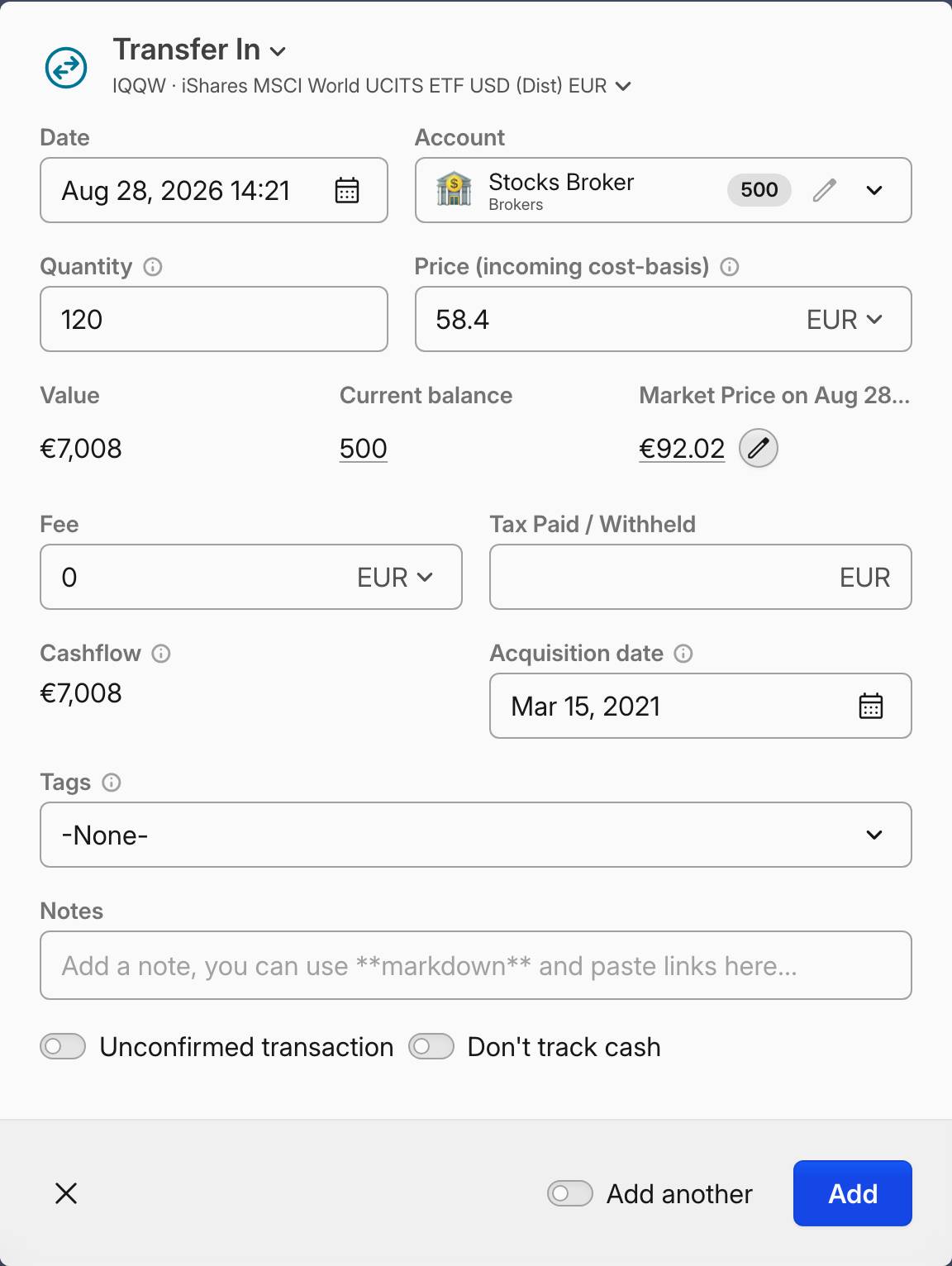 Transfer In with the receipt date and an earlier Acquisition date
Transfer is one-sided
A Transfer touches one account only. It will not zero out the source position unless you add a second Transfer there with a negative quantity, and both sides need the same cost basis, or you manufacture a return that never happened. Neither side is a taxable disposal — that comes from the transaction type, not from the matching basis. For two accounts you both track, one Convert / Move / Spinoff replaces the pair and keeps the individual lots intact.
Broker statements that list Shares In rows — shares arriving from another brokerage — map to a Transfer with a positive quantity. Built-in import presets do not map this row type automatically; they prompt you to decide how to handle it. If you do not need per-account tracking, keeping everything in one account and deleting the broker's transfer-in and transfer-out rows is a legitimate simplification.
Convert / Move / Spinoff
Use Convert whenever an asset turns into something else, or a position moves between two accounts you both track. It is a single transaction, and where it carries the lots over instead of disposing of them, each lot arrives with its own acquisition date, cost basis and acquisition fee, so holding periods and gain history stay continuous. For example in cases of:
- ticker change
- company mergers and spin-offs
- crypto migrations
- broker-to-broker transfers
To move a position to another account, pick the same asset in Source Asset and Target Asset, set Target Account to the destination, and enter the same figure in Source Quantity and Target Quantity. Leave Price (cost-basis), Cost Basis % and Tax Paid / Withheld empty. A price makes Capitally realize the difference between it and the position's own cost, which is almost never what you want for a custody move.
 A move: the same asset on both sides, two accounts, no price, and the carry toggle on
For tax-free spinoffs, set the source Quantity to 0. This tells Capitally to reduce the parent company's cost basis and open a new position in the subsidiary, without closing any parent shares. See Recording Corporate Events for detailed instructions.
It can be used for cash conversions, but it's actually better to just use Buy in these cases instead.
Whether anything is realized is decided by the toggle Carry acquisition date and lots to the target asset. On, the source lots are handed over untouched — no disposal, and a later sale in the destination is taxed on the original basis and holding period. Off, the source closes as a disposal and the target opens with a new cost basis and a holding period starting on the conversion date. Capitally sets the toggle from the fields you filled in:
What you entered | Toggle |
|---|---|
Same asset, same quantity, a different account, no Price, Cost Basis % or Tax Paid — a move | On |
A different target asset with a target quantity, Price empty, no Tax Paid | On |
A different target asset with a Cost Basis % and no Tax Paid | On |
A spinoff — source Quantity 0 — into a different asset, no Tax Paid | On, with or without a Price |
A priced conversion into a different asset | Off |
Tax Paid entered, or the same asset restated inside one account | Off |
Move the toggle yourself and it stays where you put it, whatever you change afterwards in that edit. Turning it on for a priced conversion suppresses the disposal but does not use the Price to step the basis up — the original basis still carries. One case ignores the toggle entirely: a conversion that takes quantity out and delivers no target quantity is always a disposal.
Some things stay taxable even with the toggle on. Residual cash, under Show more (residual cash), is cash paid out instead of target units, and it is a disposed slice taken out of the basis the target receives: 100 shares with a basis of 2,000 converting into 50 target shares with 500 of residual cash leave the target holding 1,500 and pay out 500. A Cost Basis % already states the target's share on its own, so residual cash is not deducted from it a second time; on a spinoff the cash adds to the parent's basis reduction instead. Where the arriving lots cover a short you already hold at the target, closing that short is a real disposal too.
Dividend, Interest, and Rent
These transaction types record the fixed income you received. It will be calculated as a separate performance metric, so it should be used only for income that is repetitive and on a more or less fixed schedule, like stock dividends, deposit interest coupons or real-estate rent paid to your account.
You may specify the income per unit for the record, but the return is calculated only based on the Dividend monetary value.
Dividends can also be marked as Return of Capital — a distribution that returns your invested capital rather than paying income. This reduces your cost basis instead of being counted as income. Expand the "Show more" section in the dividend form to access this option. See Tracking Dividends for details.
Other
The Other transaction type can be used to record income, expenses, or fees related to the position that don't change it's size.
Other transactions — including the Other Income subtype — do not count toward the Income metric, which covers only Dividend, Interest and Rent, i.e. income that repeats on a roughly fixed schedule. They still flow into Total Return as an "Other" cashflow. If you need a one-off amount such as a withholding-tax refund to appear as income, change its transaction type to Dividend.
Where you put a cost on that transaction decides which metric it lands in. Enter a one-off cost — a renovation, a legal fee, a piece of equipment — as a negative Gained/Lost Value (the Value column in the transactions table). For a cost that repeats — property tax, insurance, a maintenance contract, an ongoing management fee — leave the value at 0 and put the amount in the Fee field instead, which also feeds the Fees metric, so you can compare fee levels across the portfolio.
You will not find those subtypes as options in the type list — the type select offers Other, and Capitally derives the label shown beside it from what you entered: Other Expense for a negative value, Other Fee for a fee with the value left at 0, Other Income for a positive value.
Neither route changes Invested Principal. An Other transaction registers the cost against the position with no investment and no quantity change, so principal stays at what you paid for the asset itself and the cost lands in Realized Returns. The two do fall into different buckets of the return, and the returns options switch those buckets independently — Other covers the value route, Fees the fee route. See what is included in returns.
For worked examples, Tracking Real Estate steps through an annual property-tax entry, and Tracking Ventures and Passive Income applies the same split to private holdings.
Account Balance
This is a special transaction type, learn more in the Account Balance guide.
Price and market price
Every transaction that moves an asset carries two independent prices. Price is what you paid or received: it sets the cost basis and everything derived from it. Market Price, shown next to it, is what the asset was worth on that date, and it drives valuation. Editing one never changes the other.
A Buy or Sell requires a Price. On a Transfer or a Convert it is optional, and leaving it empty is a decision rather than an omission: a transfer with no price takes the market value on the transfer date as its basis, and a conversion with no price carries the source lots over instead of disposing of them.
The market price comes from the data provider. To override it for that date, click the pencil next to Current Market Price — the label carries the transaction's own date when it is not today — and the undo arrow beside it restores the provider's figure. The override is saved on the asset, alongside every other price you entered by hand, and appears in its Prices tab. Setting custom asset prices covers the other ways to enter one.
On a Buy or Sell, if the provider has no price for that date, Capitally falls back to the transaction price instead of leaving a gap. The toggle next to the field says which is happening — "Price from this transaction will be used if there's no market price for this date" — and switches the fallback off for that transaction. Two things bound it: the transaction currency has to match the asset's currency, and a price you entered by hand always takes precedence. Other transaction types do not feed the market price, so a Transfer with a cost basis on it leaves valuation to the provider.
Imports keep the two apart in the same way. A Price column in a transaction import sets transaction prices only; market prices are imported separately, with the Asset price history snippet, from a file of dates and prices. An asset that Capitally prices automatically can therefore carry imported prices as well — the two coexist, and your own prices win on the dates they cover.
Receiving assets you didn't pay for
Record shares that arrive without a purchase — broker promo stock, a gift, employer awards outside a formal plan, or cashback that is invested automatically (Trade Republic Saveback and similar) — as a Transfer with a positive quantity and the cost basis set to the market price on the day you received them. Leaving the cost basis empty produces the same result. Return is then measured from the receipt date onward. Where the shares were acquired earlier than they reached you — an inherited or gifted holding whose holding period you inherit as well — put that earlier day in Acquisition date, which moves the tax holding period without moving the date the position opens.
Why not a Buy at price 0
A Buy at price 0 values the position correctly but leaves the cost basis at zero, which makes the rate of return meaningless: a single promo share can report an MWR in the tens of thousands of percent. The distortion stays where it is — each asset's return is calculated independently, so an inflated figure on one holding does not corrupt the others.
Set a cost basis of 0 only when you deliberately want every future gain counted as return, i.e. you treat the asset as entirely free with no basis at all. Check the tax side before you do: many jurisdictions treat the market value at receipt as your acquisition cost, and a zero basis will not match what you file.
Cashback that buys shares
For Saveback-style schemes, one Transfer at the market price is enough. If you would rather see the reward as income, use two transactions instead: a Transfer recording the cashback as a cash inflow, then a Buy of the units at the market price. That gives a full audit trail at the cost of two entries per event — 24 a year for a monthly Saveback.
RSUs and other employee share plans work differently, and a transfer is the wrong entry for them: a vest is recorded as a Buy at the vest-date price, and shares under a lock-up are usually held in a separate account until they become sellable. See Tracking RSUs and employee share plans for the vesting, lock-up and tax walkthrough.
Cashflow, fees and taxes
Cashflow is the net money a transaction moved, and it is computed the same way for every type: Cashflow = Value − Fee − Tax. Fees and taxes always reduce it. A Buy has a positive Quantity and a negative Value, so its cashflow is negative; a Sell has a negative Quantity and a positive Value, so its cashflow is positive. Dividends and other income follow the same pattern. A Convert, Move or Spinoff appears against both positions and follows the same perspective at each end — positive at the source giving the value up, negative at the target receiving it — so the two rows describe one flow rather than two cash movements.
That normalization is the point: one column tells you how much money actually moved, whatever the transaction type. IRR is computed by a separate method and is not derived from the Cashflow column, though it follows the same inflow and outflow sign conventions.
Seeing what a trade cost you, all in
The Cashflow column is hidden by default. Open the Transactions tab, click the cog icon next to the table and add Cashflow. Each row then shows its value combined with the fee and the tax — the total amount that left or reached your account.
Entering fees and taxes
Enter fees and taxes as positive numbers. A negative value means a refund or credit — a fee rebate, or the negative expenses a private-equity fund sometimes reports. The interface shows costs with a plus sign and refunds with a minus. Most transaction types carry both a Fee and a Tax Paid field, so put a fee on the transaction it belongs to.
Brokers that report tax withholding as a separate row (Schwab among them) are handled with the Other type, which also carries a Tax Paid field.
Fees that belong to no asset
Custody fees, platform fees and advisor management fees have no position to attach to. Record them on the cash asset of that account (EUR, USD, and so on) as an Other transaction: set the transaction Value to 0 and put the amount in the Fee field. If you want to compare fee levels across accounts, create a separate custom asset per fee type and log the fees there.
An Other transaction never moves the balance
Other records a cost or income against the position and feeds the returns calculation, but it does not change the account's balance — which is why one on a cash account can look like it did nothing. When the balance itself has to change, use Transfer with a positive or negative quantity, or an Account Balance transaction.
To leave fees out of returns and IRR altogether, see what is included in returns.
Editing and cloning multiple transactions at once
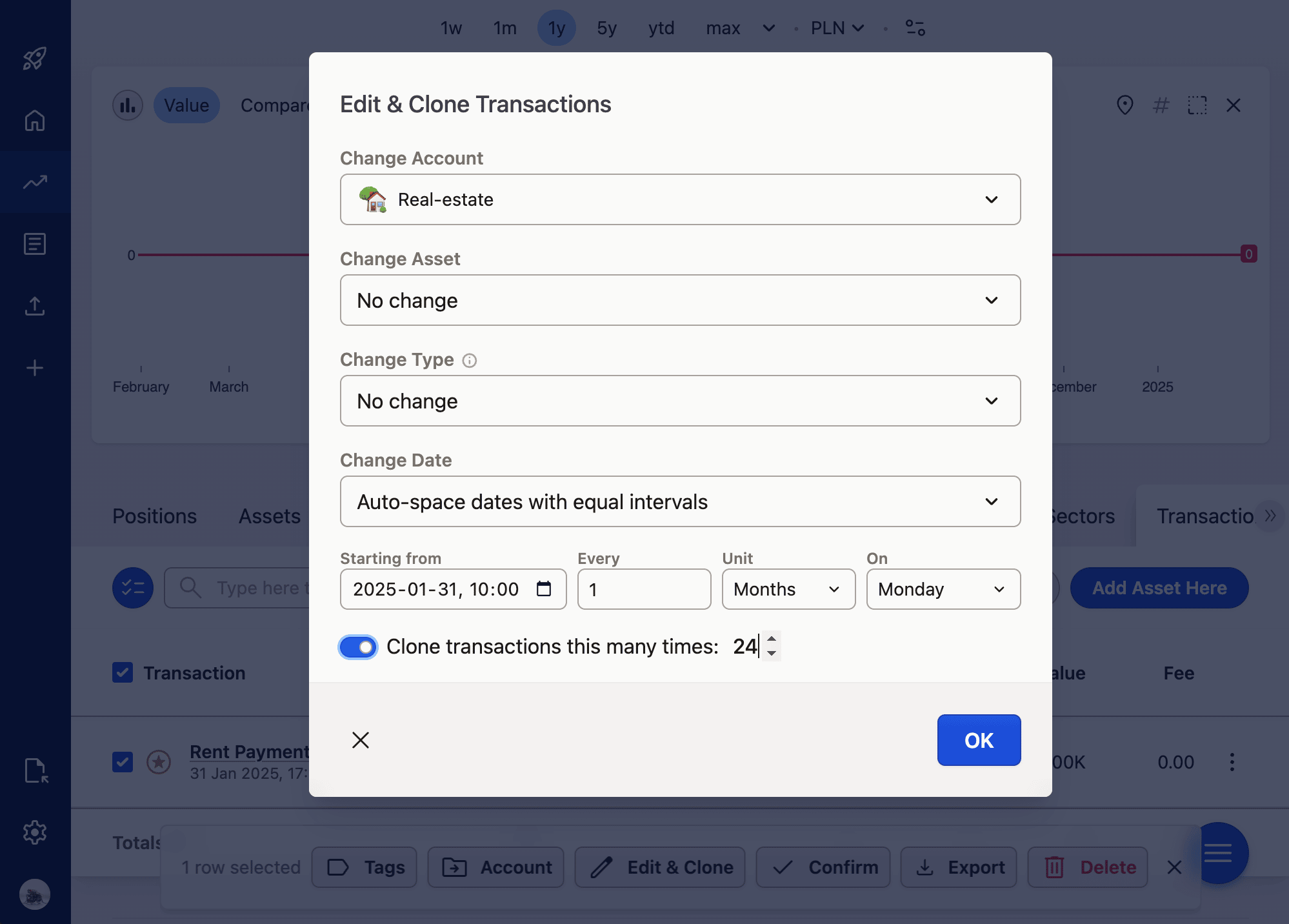
You can modify and clone multiple transactions by selecting them and choosing Edit & Clone from the popup at the bottom.
You can modify Account, Asset, Transaction type and dates.
For dates, you can set or apply relative offset to each part of the date separately - for example to fix timezone discrepancies after import.
You can also clone the same transaction multiple times, which is especially handy when working with recurring transactions like Rent payments or utility fees. In such case, you can auto-space these cloned transactions using a specific interval.
Dates, times and transaction ordering
Capitally stores transaction times at face value, with no timezone attached. The date drives every calculation, and it is the date as the exchange or broker reports it — that is the reference used for settlement and tax reporting, not your local calendar. Times exist to order transactions within the same account and asset on the same day, and are stored and used exactly as entered.
Ordering transactions that share a date
When several transactions fall on the same date, Capitally keeps the insertion order — the order in which you created them. For finer control, set explicit times (00:01, 00:02, and so on) to force a sequence. Under FIFO the same-day order usually does not matter, though it can where different strike prices or similar nuances are involved.
Imports and timezones
If an imported time carries a timezone in ISO format, Capitally converts it to extract the settlement date as the broker sees it, rather than your local date.
If a whole batch of imported transactions landed a day off, fix it with Edit & Clone rather than one row at a time — it applies a relative offset to each part of a date separately, as described above.