We understand that having access to your data in a format that works for you is crucial. That's why we've made it easy for you to export your data in multiple ways. Here's how you can do it.
Full Export in JSON
You can export the whole portfolio in a JSON format by going to Settings -> Export Data.
This will allow you to export everything you've input into the app, including your assets, manual market prices, import templates and project settings. Essentially, this is the full internal state of the application.
If you need to, you can import that JSON back into the app by using the Data Exported from Capitally import preset.
The one thing the file leaves out is market data we license from providers — quotes and fundamentals cannot be redistributed. Prices you entered yourself are included.
Backing up and restoring your project
A JSON export from Settings -> Export Data is your backup, and re-importing it into a fresh project is the restore. Automatic sync protects you against a lost or broken device; it does not protect you against a lost password, because the copy on our servers is ciphertext nobody here can decrypt. Only the export covers the second failure.
What the sync already covers
Your data is encrypted on your device and synced continuously, as a sequence of changes rather than one snapshot. That is what lets you undo an action or roll back to an earlier point — see Changes History. Sign in on a new device and the project rebuilds itself from that sequence. What it cannot do is recover a password: there is no server-side reset, and without the password the synced copy is unreadable to everyone, us included. See If you lose your project password.
Taking a backup
Export to JSON on a regular cadence and keep the file off-device, wherever you keep the password. CSV and Excel exports are readable but are not a restore format — only JSON round-trips back into the app.
Restoring from a backup
- Open the Switch Project modal and create a new project.
- Go to Import and select the Data exported from Capitally preset.
- Upload the JSON file and confirm.
Items with new IDs are added, items with existing IDs are merged, so re-running an import is safe. Restoring into a brand-new project is also how you drop a change history you no longer want — see Remove all History.
Is there an API?
Capitally has no API today, and that is not a question of priorities: every project is encrypted on your device, so our servers hold ciphertext and have nothing to serve. Exports do the same job — they return the data an API would, in three shapes depending on how much of it you need.
- Full export - Settings -> Export Data gives you everything you have put into the app as JSON, CSV or Excel: assets, manual prices, import templates, project settings.
- Selective export - select positions or transactions in any table and choose Export -> Export Items to get just those records plus their related assets and accounts. See Export Selected Items.
- History export - from the History page, export only the changes made since your last export. That is the cheap way to keep another system in step instead of re-exporting the whole project each time. See Export and import history.
Run any of these on a schedule and feed the files into an accounting system or whatever else you keep alongside Capitally.
A command-line tool that would act as a local API — running on your own device, where the data is decrypted, and syncing encrypted changes from there — is on the roadmap.
Export any table
Anything you see in a table can be exported. This allows you to take your data analysis outside of Capitally and use it in other applications or reports.
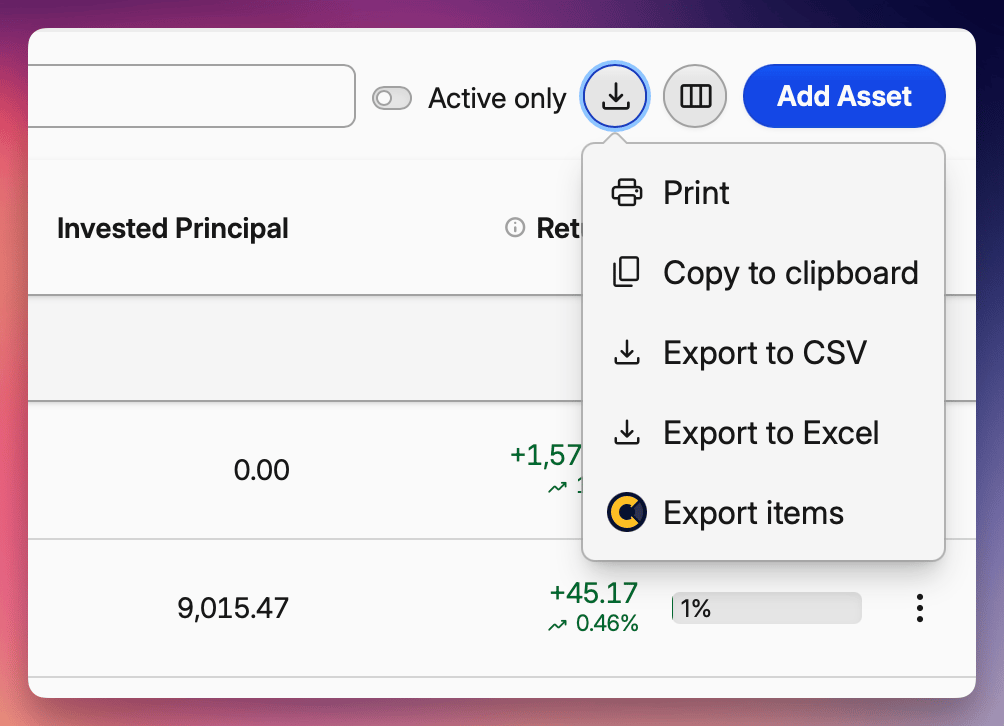
Available formats
Click the export menu icon above any table to choose from:
- CSV - comma-separated values, opens in any spreadsheet app
- Excel - native Excel format (.xlsx)
- Clipboard - copy data directly, paste into any application
- AI - markdown optimized for AI agents
- Print - send to your printer or save as PDF
Every one of these writes numbers with a period as the decimal separator, whatever locale your profile is set to. If your spreadsheet then reads them as text, see Numbers look wrong when I open the file.
What gets exported
The exported data matches exactly what you see in the table:
- Same columns in the same order
- Same rows based on your current expand/collapse state
- Group headers and totals are excluded
Export for AI agents
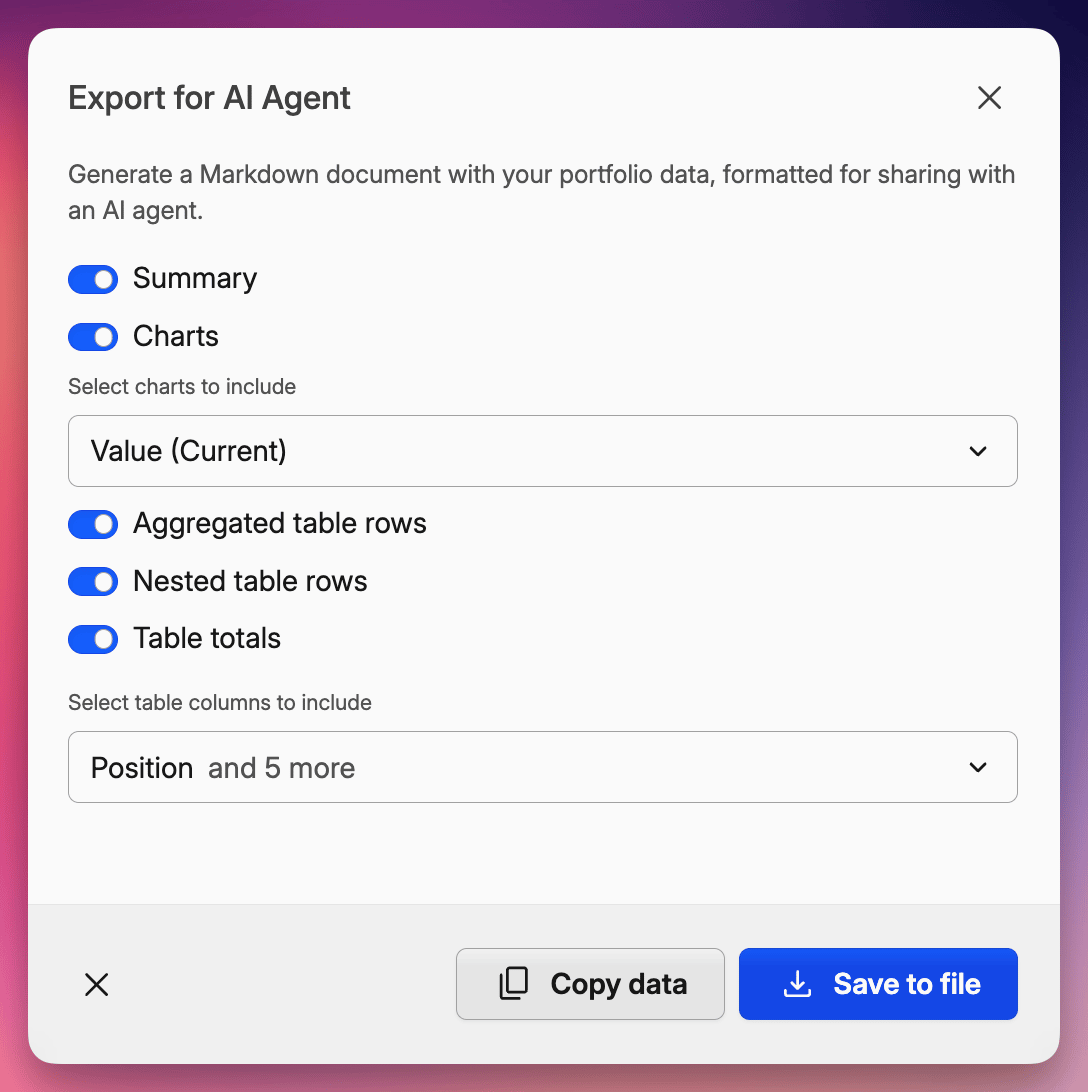
Export for AI packages a portfolio view into a single Markdown document built for large language models — so you can drop your portfolio into ChatGPT, Claude, or any AI agent and ask questions about it directly. Markdown is the format models read most reliably: headings, lists, and tables map to the structure they expect, and a table of numbers beats a screenshot of a chart.
Find it in the same export menu as the other formats — click the export icon above any Portfolio table and choose Export for AI.
What you can include
Toggle any of these sections on or off before exporting:
- Summary — your headline metrics for the view: market value, invested principal, total and annualized return, realized vs. unrealized, income, fees, and tax, each labelled and formatted.
- Charts — any chart preset, written out as a data table rather than an image. Allocation pies become label-and-value rows, X-Ray and heatmaps keep their hierarchy, and time series are sampled down to a compact set of dated rows. The chart you're currently viewing is pre-selected; add any others from the picker.
- Aggregated table rows, Nested table rows, and Table totals — choose which rows of the underlying table are included, and whether a totals row is appended.
When the table is included, a column picker lets you export exactly the columns you want, or reset to the ones currently visible on screen.
Every export also opens with a short context block — base currency, date range, locale, number and date formats, and which return method the figures use (TWR, IRR, or ROI) — so the agent interprets your numbers correctly instead of guessing.
Export only selected rows
To narrow the export to part of your portfolio:
- Click the checkbox button in the top-left corner of any table to turn on multi-selection.
- Select the positions or transactions you want — individually, or use a group header to select a whole group.
- Click Export in the action bar at the bottom, then choose Export for AI.
The summary, charts, and table are all recomputed for just that selection, so you can ask an agent about a single account, one strategy, or a short list of holdings without the rest of the portfolio in the way.
Export Selected Items
Sometimes you need to export just specific items rather than entire tables. You can select individual transactions, positions, or other items and export them in a CSV, XLS, PDF or Capitally's JSON format - perfect for reimporting into another project.
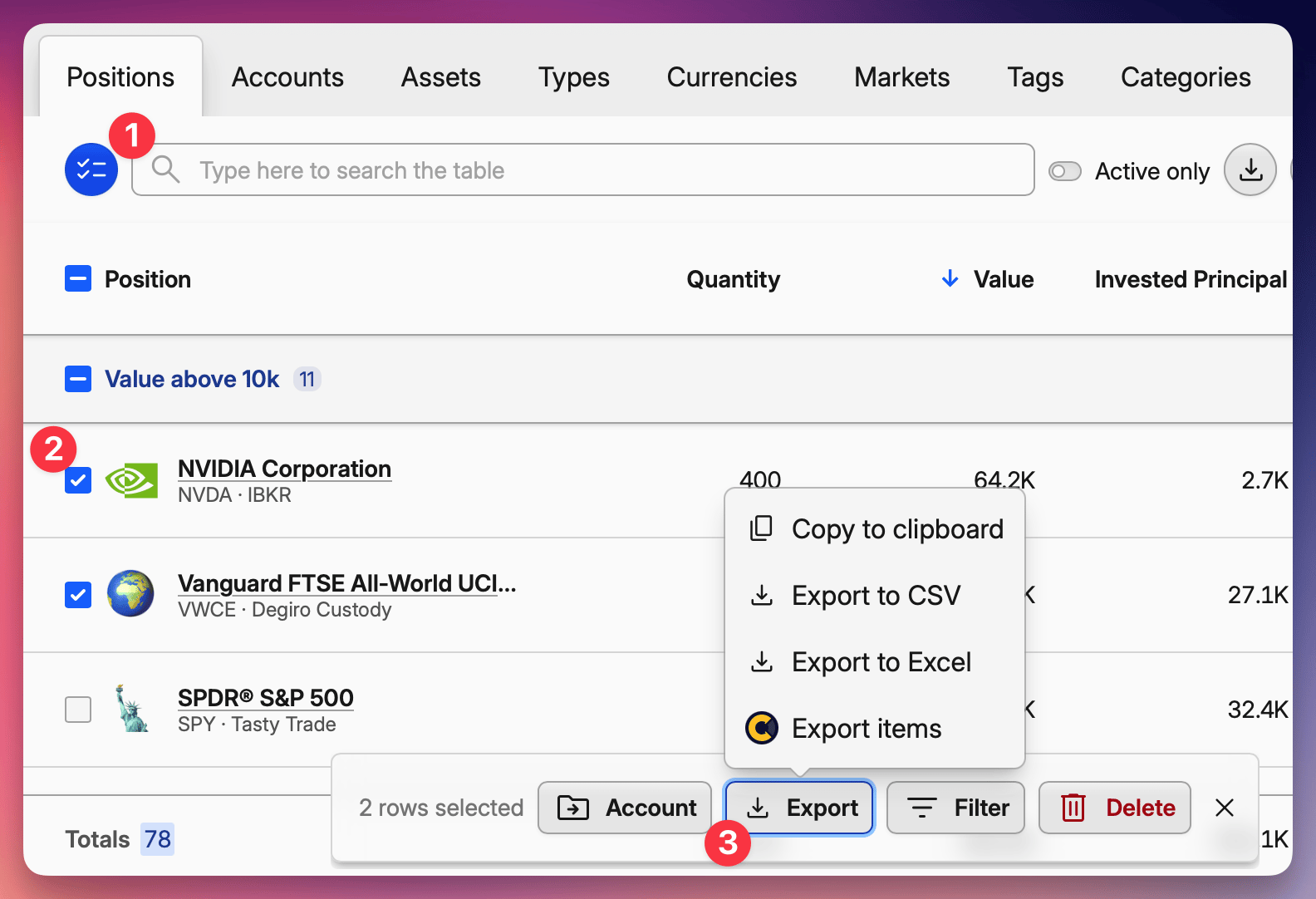
- Navigate to any portfolio view
- Click the checkbox button in the top-left corner of the table to enable multi-selection
- Select the rows you want to export - click individual checkboxes or use the header checkbox to select all visible. You can check the group header to select all items within a group
- Click Export in the action bar that appears at the bottom
Copying items between projects
By choosing Export Items you will download a file that will contain the selected items and all related objects. For example if you select transactions, you will also export related assets and accounts.
See Reimporting exported items below.
Export selected positions
You can also export entire positions, which includes both the position data AND all underlying transactions and assets.
- Navigate to Portfolio and select the Positions grouping, or open a specific account
- Enable multi-selection using the checkbox button
- Select the positions you want to export
- Click Export -> Export Items
- Switch to the target project with the project selector in the main menu, or create a new one there — see Projects
- Import the file with the Capitally preset — see Import exported items
This is particularly useful for:
- Transferring an account to another project - select all positions in an account and export them
- Splitting a project - export specific positions to move them to a new project
- Merging two projects - export everything from one and import it into the other
- Sharing data for troubleshooting - export relevant positions to share with support
- Creating partial backups - back up specific parts of your portfolio
Export Items copies, it does not move
The positions stay in the source project. Once you have checked that everything arrived — quantities, cost basis and transaction counts — delete the account or the exported positions from the original project, or you will be tracking the same holdings twice.
Import exported items
To import the exported items into the same or different project:
- Go to Import
- Select Capitally from the list of presets
- Upload the exported JSON file
- Review and confirm the import
Items with new IDs will be added. Items with existing IDs will be merged with your current data.
Copying a project into another project
The mechanics are the same as a restore — export to JSON, create the target project from the Switch Project modal, import with the Data exported from Capitally preset (see Restoring from a backup). What is different is the reconciliation afterwards: a copy is only useful as a sandbox, a split portfolio or a slice for someone else if its numbers match the original.
Three things have to line up before the two copies agree:
- Viewing currency and return options. Set both projects to the same base currency and the same return-calculation options, or the metrics will legitimately differ. See Modifying options.
- Prices. Two projects on the same device share asset valuations, so prices you entered manually carry across. Open the copy on another device and it fetches its own.
- Deleted transactions. The list of deleted transactions is not carried through the export, so transactions you had deleted — stock splits most often — can reappear in the copy. Check for them after importing and delete them again.
If the numbers still differ, work down from the top rather than comparing transaction by transaction:
- Open both projects in separate tabs and refresh both windows.
- Confirm the date period and view settings are identical.
- Compare the Principal portfolio first.
- Group by Categories or Currencies to find which group diverges.
- Drill into the security in that group and compare its transactions.
Preparing a portfolio record for your family
Because your project is end-to-end encrypted, nobody — including us — can hand it over to a family member. Whoever needs to find your holdings after you needs two things, and only you can prepare them: a readable list of what you own and where, and a way to reach the password.
- Put the institution name, the account number or reference, the contact person and any instructions into each account's notes, so they travel with the data instead of living in a separate document.
- Open the Positions view with the columns that matter — name, symbol, ISIN, quantity, current value, cost basis — and use the export menu's Print option to save it as a PDF. See Available formats.
- Keep a JSON export next to it as the restorable copy.
- Store both wherever the rest of your estate paperwork lives, together with how to reach the password.
Troubleshooting exports
Numbers look wrong when I open the file
Capitally writes the decimal point as a period in both CSV and Excel files — the standard technical notation. An .xlsx opened in Excel can look like it uses commas instead: Excel applies your system's regional formatting for display, and the stored value is unchanged.
For CSV, do not double-click the file. Open your spreadsheet application first and use its import dialog, where you set the delimiter and the number format so the values are read for your locale.
Safari says the file is not a valid download
Safari appends .download to a file while it is still downloading, and sometimes gets stuck trying to resume a stale session instead of starting over. The error reads: "Safari can't resume this download. The file '[name].xlsx.download' doesn't appear to be a valid download file."
- Delete the partial
.downloadfile from your Downloads folder. - Run the export again so it downloads from scratch.
If it keeps happening, run the export in Chrome or Firefox, or export CSV instead — same data, and it downloads cleanly in Safari.