If something in Capitally doesn't work the way you expect, or a number doesn't add up, tell us. Choose Contact support in the top-right ⋮ menu, describe what you see in your own words and send it — we answer by email. You don't have to work out the cause first or collect logs by hand: the app can attach what we need, and anything that could identify you is masked before it leaves your device.
If you'd rather look first, search the help documentation with the loupe up top, or ask on the community forum — we're there too.
Contacting support
Write the way you'd explain it to a friend: what you were doing, what you expected, and what happened instead. A screenshot often says more than a paragraph, so paste one straight into the message, or attach the file that caused the trouble — a broker export, a spreadsheet, a PDF statement.
You don't always have to start from the menu. Where a problem shows up, the app offers to report it and fills in the details for you: the report icon next to an error, Let us know under an asset search that finds nothing, a position's data errors, and an import that can't read your file. You only add what you were trying to do.
Replies go to your account's email address, so you need to be signed in with a verified email. If you can't sign in at all, write to support@mycapitally.com instead.
Adding diagnostics when they help
Two checkboxes under the message save a round of questions:
- Include diagnostics for anything that behaves oddly — an error, a screen that won't load, a value that changes when it shouldn't. It adds the app version, your settings and what you did in the app over the last few minutes, which is usually enough for us to find the cause. When you report an error, it is already ticked.
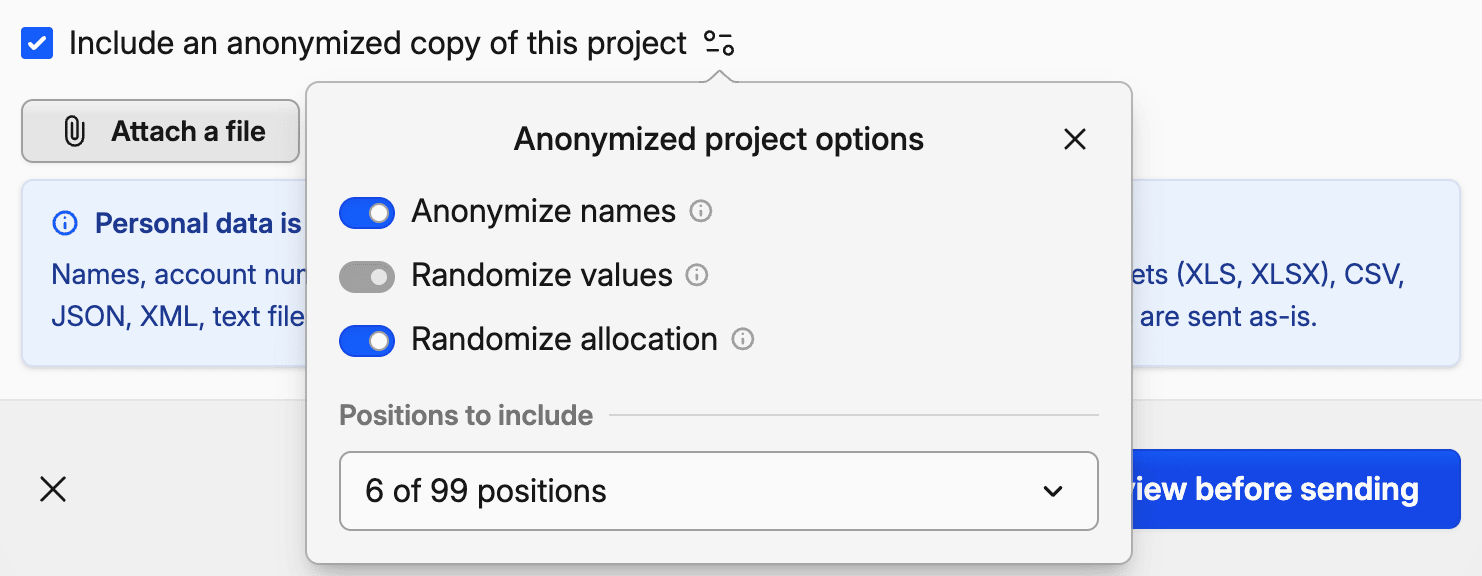
- Include an anonymized copy of this project when the problem depends on your data — a return you can't reconcile, a calculation that looks off. We open the copy on our side and see the same issue as you do, without your names or real amounts. The options next to it let you send only the positions involved.
For a question about a feature or about billing, leave both unticked.
What we see before you send
Your project is end-to-end encrypted, so we see only what you choose to send — and you check it before it goes. After you click Review, Capitally lists the values that look personal: names, account numbers, identifiers and email addresses, found in your attached files, error details and diagnostics. Each ticked value is replaced with a random look-alike, such as another realistic name. Amounts and dates stay as they are, so we can still find the problem.
If you spot something the list missed, search for it and mask it too, then open the cleaned files to see exactly what we'll receive. Your choices are remembered for next time, stored hashed on your device. Workbook comments, links and formulas are removed from spreadsheets, and in diagnostics only the IDs that let us find your session are kept as they are.
Images and PDFs are sent as they are
The review can't read inside a screenshot or a PDF, so crop or blur anything personal before attaching one — or send the data as a CSV or spreadsheet, which gets masked.
Diagnostics without writing a message
The diagnostics link at the bottom of the top-right menu, next to the version number, has the same tools for when you'd rather send them yourself, by email or on the forum.
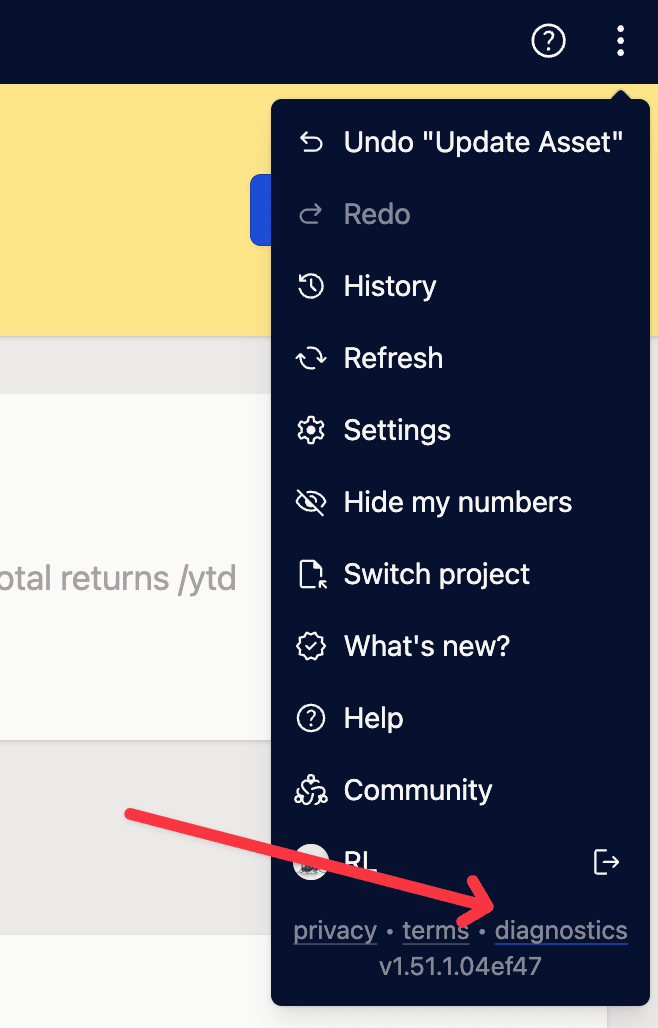
- Download diagnostic logs saves the same report that Include diagnostics attaches.
- Export anonymized project saves a copy we can load to recreate the issue. Market symbols and prices stay intact so the calculations still match. Names keep only a few letters at each end ("My asset" becomes "my---et"), and you can multiply every value by one random factor between 0.1 and 10, or each position by its own, to hide your amounts and allocation too. Pick some positions instead of All positions to send only those and what they reference. Credentials of custom data sources are always removed.
Sending a single asset or transaction
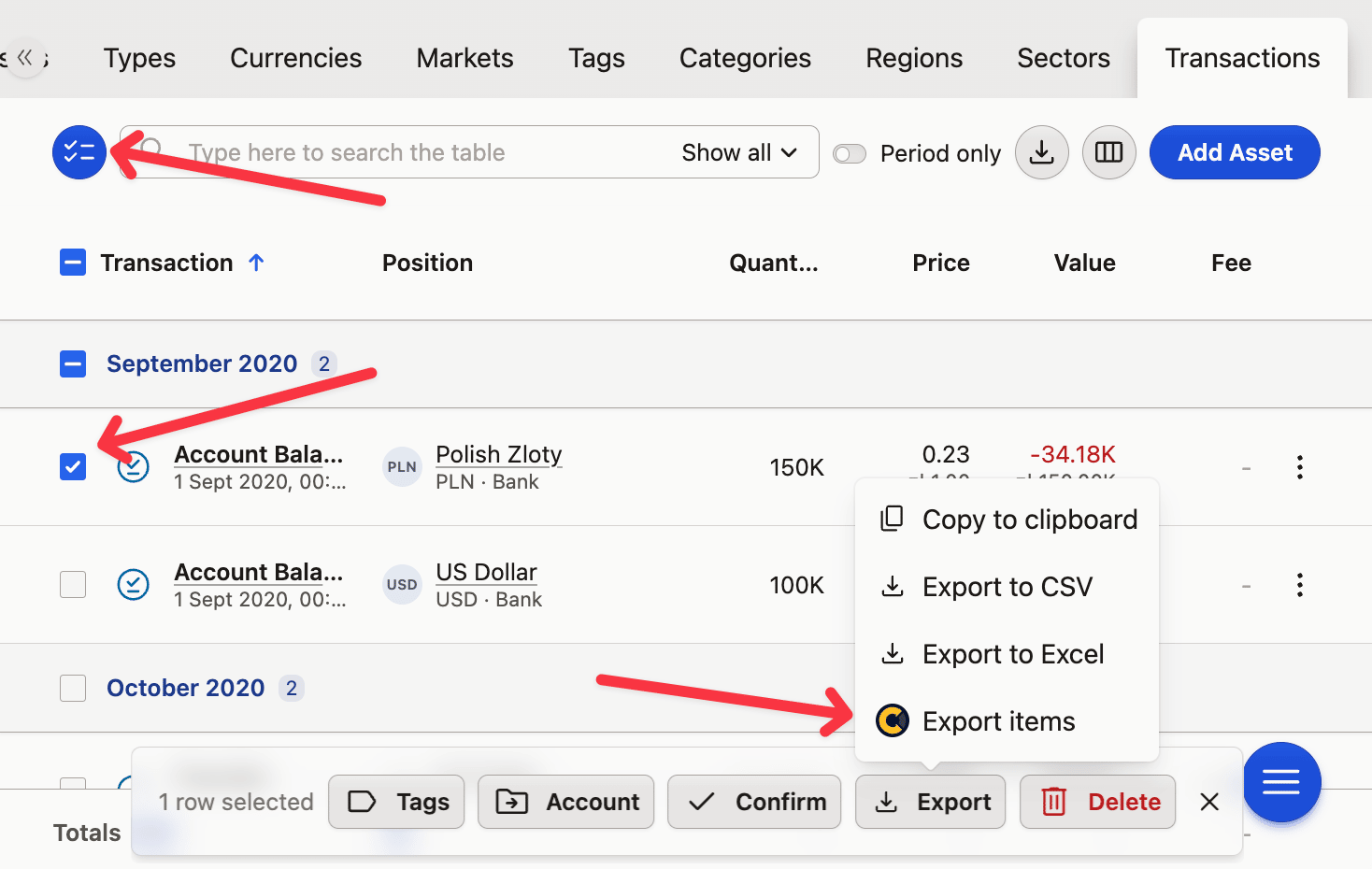
When the problem sits in one place, you can export just that item:
- In Portfolio, open the Positions, Assets or Transactions tab.
- Enable selection and select the item.
- Click Export → Export items at the bottom.
Guides for common problems
Some problems have a guide that may get you going straight away:
- The app won't load, freezes, or shows different numbers on two devices — Troubleshooting the app.
- Prices, balances, returns or dividends look wrong — Troubleshooting.
- A file won't import, or rows are missing after an import — Import from a broker or app.
- Language, number and date formats, or settings that don't stick — Settings and display preferences.
- You can't sign in, or the portfolio looks empty once you are in — Your account and signing in.
- Payments, invoices, VAT and plan changes — Subscription and billing.
- You have lost the password to a project — If you lose your project password.
- Backing up, restoring, or moving data between projects — Backing up and restoring your project.
If none of them fits, or the guide didn't help, write to us — that's what we're here for.