The command palette is one search box for the whole project. It finds assets, accounts, transactions, tags, categories, regions, sectors, account folders, markets, currencies and bookmarks, and it runs every command in the app — switching a page, a metric, a period or a filter included. Open it with Ctrl+K (⌘K on a Mac) or /, or with the magnifier in the top bar on a touch screen.
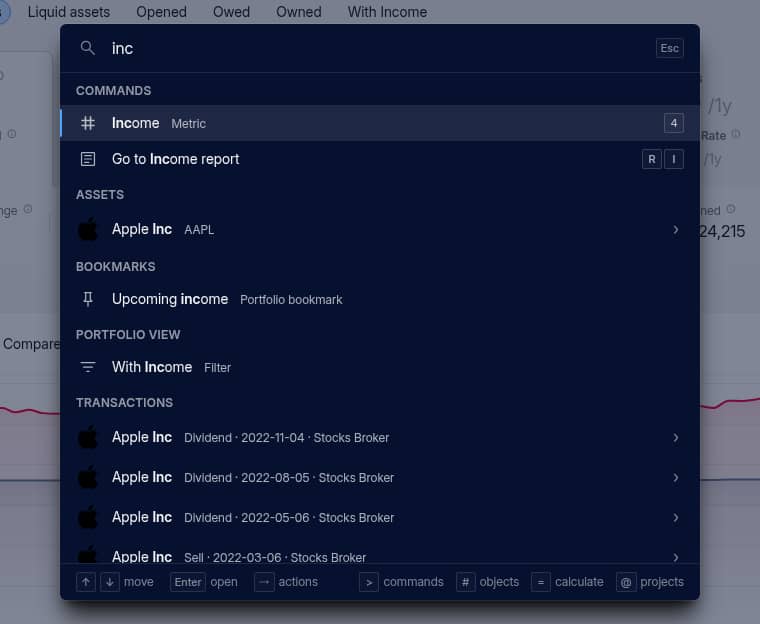
Opening a result, or acting on it
Enter opens the highlighted result: an asset or account opens in Portfolio, a bookmark restores its view, a command runs. To act on an object without leaving the page, press → or Tab instead, or tap the › at the end of its row. That lists the same actions as the object's menu in the Portfolio table, such as editing an asset or showing its history.
Opened empty, the palette lists the objects you viewed and the commands you ran last. These recents are kept in this browser, per project, and hold only ids; names are looked up when the list is shown, so nothing readable about your portfolio is stored outside the encrypted project.
Search syntax
The palette reads the same syntax as the search box above Portfolio tables: words separated by spaces must all match, a comma separates alternatives, - or ! excludes, * and ? are wildcards, and "apple inc" matches the words together and in that order. Typos in plain words still find close matches.
Two things differ from table search:
type:narrows to one kind of object.type:account rothfinds only accounts,type:transactiononly transactions. The other kinds areasset,category,marketandcurrency.#does not search tags. At the start of the search it limits the palette to objects. Type a tag's name to find it.
A first character switches what the palette searches:
Start with | To search |
|---|---|
| commands only |
| objects only: assets, accounts, transactions, tags and the rest |
| your projects, to switch to another one |
| nothing — it opens the calculator |
Backspace in an empty box goes back to searching everything. The keys P, O and = open the palette directly on objects, projects or the calculator.
Changing the view from the palette
The current page's choices are searchable as commands. On Portfolio, Summary and the Income and Risk reports, typing ytd or max switches the period. Filters work on Portfolio and every report: type a saved filter's name to apply it. Metrics, chart types, groupings and Settings sections are listed the same way, each with its shortcut where it has one.
Calculator
Type a calculation such as 1200 * 1.23, or anything after =, and the result appears first. Enter copies it to the clipboard. The calculator takes + - * / ^ % and parentheses.
Both number formats work: 1,000.50 and 1.000,50 are the same amount, and 217,79 is a decimal. A comma followed by exactly three digits groups thousands, so 1,000 is one thousand. Number fields in forms that accept calculations read numbers the same way.
Keyboard shortcuts
Press ? to see every shortcut. The sheet dims the ones the current page doesn't support. Shortcuts are also shown next to each command in the palette and in the menus.
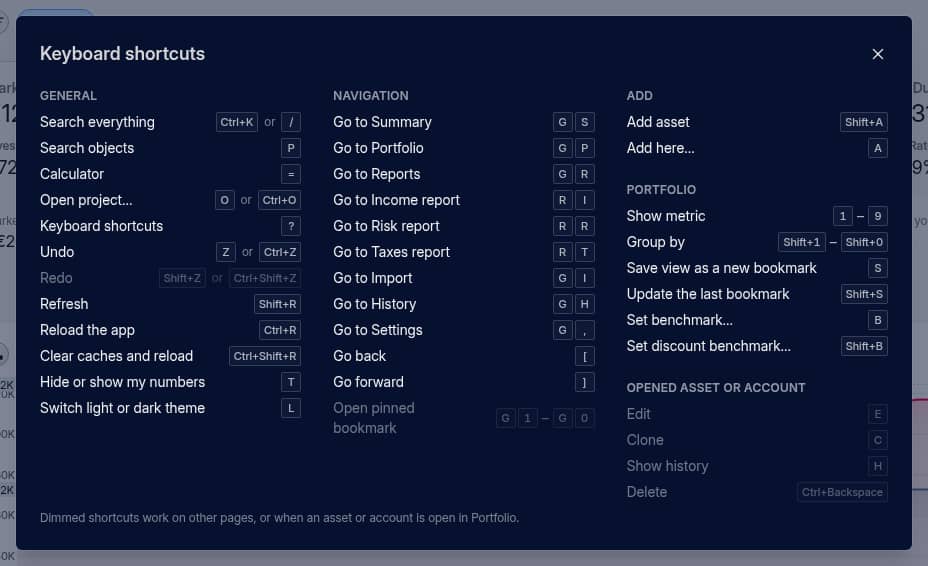
Shortcuts don't fire while you're typing in a field, or while a dialog, menu or dropdown is open — Escape closes it first. Ctrl+K is the exception: it opens the palette even from a text field.
The ones worth learning first:
Keys | Does |
|---|---|
| Summary, Portfolio, Reports, Import, History, Settings |
| Income, Risk or Taxes report |
| back and forward |
| Portfolio metric |
| Portfolio grouping |
| add what fits the page |
| |
| hide or show your numbers |
Pause after G or R and the main menu shows the second key next to each page for three seconds.
What A adds
On Portfolio, A does what the Add button above the table does, so it adds an account on the Accounts tab and a tag on the Tags tab. Anywhere else it adds an asset. Shift+A always adds an asset.
Bookmarks and benchmarks
S saves the current view as a new bookmark and Shift+S updates the bookmark you opened last, or asks which one when you haven't opened any. G 1 to G 0 open your pinned bookmarks in menu-bar order, Portfolio's first, then Reports'. B sets the benchmark on Portfolio, Summary and the Risk report, and Shift+B sets the discount benchmark.
With an asset or account open
With a single asset or account open in Portfolio, E edits it, C clones it, H shows its change history and Ctrl+Backspace (⌘⌫ on a Mac) deletes it.
Shortcuts can't be remapped
The shortcuts are the same for everyone and can't be changed. Letter shortcuts follow the letter you type, so they work on AZERTY and other layouts; on a keyboard without Latin letters they fall back to the key in the same position on a US layout.