This article covers everything market data touches: prices that look wrong, the warnings Capitally shows when it cannot fetch one, and the symbol changes behind most of them - renames, splits, mergers, spin-offs, delistings and symbols the provider has dropped. Two neighbouring symptoms live elsewhere: totals that differ while share counts match are in Balances and cash don't match, and percentages or chart shapes that look off are in Returns and charts look wrong. If everything went wrong at once and it started with an import, begin at Import problems.
A price looks wrong: spikes, jumps, or a value that doesn't match
When a price is present but looks wrong, confirm it really is wrong before changing anything: look the same symbol up on TradingView or Yahoo Finance. If they agree with Capitally, the price is right and something else explains the surprise - most often the period or the currency unit.
- Check the period. The price shown is the price at the ending date of the selected period. Switch to
YTDorMAXto see today's price. - Rule out a currency-unit mismatch. London listings are quoted in GBX (pence), not GBP, which makes values look 100x off - the fix is in Balances and cash don't match.
- Reset the cache.
Settings→Analysis→Reset data and prices cacheforces a re-fetch, which picks up any correction the provider has already made. - Check the symbol. Edit the asset →
Pricestab and confirm the market symbol. Wrong or spiking data usually comes from the wrong exchange listing, a symbol the provider renamed or removed, or - on a custom asset - a pricing symbol assigned by accident where a market-listed asset should have been chosen. Switch to a listing on another exchange, or override the bad dates by entering daily prices in thePricestab. - Tell us. Send the symbol and the affected dates to support. We raise it with the data provider, and their corrections propagate automatically.
An exclamation mark (!) next to an asset means price data is missing for part of the period - click it for detail. The usual cause is a first transaction that predates the symbol's available history: pick a symbol with a longer history in the Prices tab, or add a manual price for that date. Failed to fetch or MarketDataError: 404 means a symbol in your portfolio was removed by the provider - change it to an active one, or see A symbol was delisted, renamed, or dropped by the data provider.
Differences against your broker are normal. Capitally uses end-of-day closing prices rather than intraday, currency conversion uses average bid/ask rates delayed by 15-45 minutes, and Capitally shows unadjusted prices where some sites show adjusted ones. See Data Freshness. When share counts match your broker and only the totals differ, the price source is not the problem - go to Balances and cash don't match.
A bond's price is out by a factor of 100
Check Price is reported as a % of face value against the Face value field - the two have to agree. With the toggle on, the quote is scaled by face value ÷ 100, so 98.5 against a face value of 1,000 prices at 985. Face value is 1 unless you set it, and against that the same quote prices at 0.985. With the toggle off the quote is read as an absolute price and 98.5 stays 98.5. Both sit in the Market prices section of the asset's interest editor.
A bond's price is out by roughly one coupon
Check Price is reported with accrual. The price you see is the dirty price - the quote plus the accrued interest the schedule has built up - so a quote that already carries accrual has it counted twice unless the toggle says so. Exchange quotes are almost always clean, which is why it is off by default. The error is the size of the accrual, so it grows through a coupon period and snaps back on the coupon date. The alert below the toggles states the equation currently in force; read that against what your source publishes before changing anything.
A bond shows its schedule price before a certain date
A market symbol's quote carries forward past the end of its series but never backwards, so dates before its first quote fall back to the asset's own interest schedule - no warning, just a different price. A bond bought in 2018 against a symbol whose history starts in 2021 is priced from the schedule until then and from the market afterwards. Fill the gap with points under Manual clean prices: with a symbol attached, they override it on the dates they carry.
Capitally says "Some results may be stale"
The Some results may be stale... warning means Capitally couldn't fetch current prices for one or more assets, so what you see are the last values it holds. Look for a second error message below it - that one names the symbol that failed. Three causes account for almost all of them: a network problem, a delisted symbol, or a ticker that was renamed.
Fix it by cause:
- A temporary or network issue: check your internet connection and refresh. If that isn't it,
Settings→Analysis→Reset data and prices cache, then try again. If that does not clear it, the deeper resets are in Troubleshooting the app. - A delisted symbol - the asset was removed by our data provider: edit the asset →
Pricestab → tickMark as delisted from exchange. Your cached price history is kept. - A renamed ticker: edit the asset →
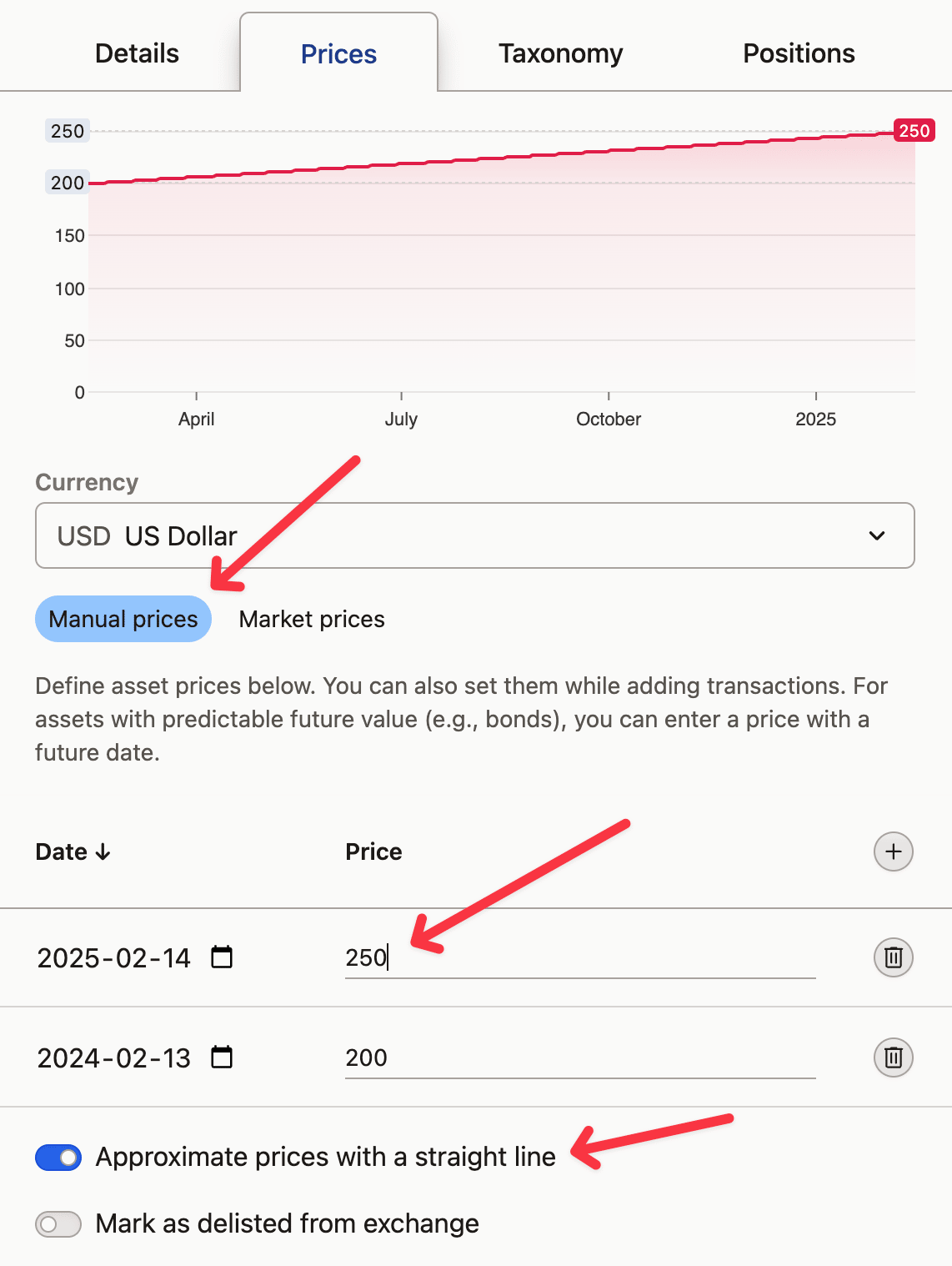
Pricestab → search for the new symbol inSource prices using this market symbol. - When no other listing exists: edit the asset →
Pricestab → switchPricing methodfromMarkettoManual.
If the issue persists, contact support with the specific symbol that's failing.
"Failed to fetch" or "Positions failed to resolve"
Both messages mean Capitally temporarily could not pull market prices for the positions view. Your stored data is unaffected - transactions and history are saved as they are, and only live price loading is failing. The usual cause is a large number of price requests firing at once and one of them timing out, which is common with large portfolios and especially after the app has been idle for a while.
Click Retry. It re-runs the fetch and usually resolves it, though it can take a couple of attempts. When more than roughly 200-250 new symbols load at once, the market data provider may start rejecting connections; retry, and the remaining symbols normally arrive within about a minute. It should not recur on later days unless you keep hundreds of actively open symbols. If it happens constantly rather than occasionally, let us know - Troubleshooting the app covers what else slows a large portfolio down.
A price warning on a position you already closed
A price alert on the Dashboard for a position you closed years ago means Capitally is still trying to fetch prices for a symbol that may no longer exist. To clear it, find the asset in your asset list, edit it, open the Prices tab and switch Pricing method from Market to Manual. That stops the fetch attempts and removes the alert, and your historical prices are kept.
This works for delisted symbols and for symbols the data provider has dropped, and is an alternative to ticking Mark as delisted from exchange.
Capitally couldn't fetch a price or a currency rate
We couldn't fetch price for X and We couldn't resolve currency pair X appear underneath the Issues were encountered while evaluating metrics warning, most often right after an import or a change to your portfolio. Both say the same thing: for some date your transactions cover, Capitally has no market price or no exchange rate. Nothing in your stored data is broken.
The negative-balance message that can appear under the same warning is covered in Balances and cash don't match.
"We couldn't fetch price for X"
This issue arises when we don't have the market price and/or currency exchange rates for the dates your transactions occurred. Here's how you can resolve this:
- Check your network connection: If you see a
Failed to fetcherror, there might be an issue with your network connection or our backends. Reach out to us if the issue persists. - Change the currency: If it's the currency that is missing, try viewing the project in another currency, preferably USD, as it has the longest history.
- Change the market symbol: The market symbol's price history you are using might be too short. Edit the asset, open the
Pricestab and select another market symbol in theSource prices using this market symbol. - Verify your transaction dates: Check your transaction dates by opening the Transactions tab in Portfolio and sorting transactions by Date. You can edit a transaction just by clicking on its date.
- Add a Market Price manually: If all else fails, you may need to add a Market Price for your first transaction's date manually. This is likely if you bought an asset before the IPO. Open your first transaction on the asset, and edit the
Market Pricethere.
"We couldn't resolve currency pair X"
This issue happens when we can't find a currency pair between the Asset and viewing currencies. If your network connection is fine, try changing the viewing or Asset currencies to something less exotic.
A symbol was delisted, renamed, or dropped by the data provider
Two messages, two different causes. X is marked as delisted and won't be updated anymore means the data provider stopped updating that symbol - because it really was delisted, or because the company was renamed and the old ticker retired. X is no longer available at our data provider means we lost access to the symbol, which is not the same thing as a delisting.
The ticker or company name changed
When a company renames or re-tickers, the data provider normally keeps both symbols under the same ISIN and marks the old one delisted. Capitally therefore leaves your asset on the old symbol and tells you it is delisted rather than switching it silently, so nothing about your portfolio changes without you knowing. Updating it is a three-step edit:
- Edit the asset in your portfolio and go to the
Pricestab. - Search for the new symbol in
Source prices using this market symbol. - Select it - your history is preserved. If you no longer hold the position, tick
Mark as delisted from exchangeinstead.
Two things that help when this does not go smoothly. If the provider changed a symbol's currency or mapping, re-select the price source even when the dropdown already shows the right symbol - re-selecting is what refreshes the mapping. And if you cannot find the renamed company, search by ISIN: assets are sometimes still indexed under the previous name, for example K2 Internet for Fabrity Holding.
Capitally tracks assets by an internal ID rather than by ticker, so editing the name and ticker does not break your history.
"X is marked as delisted and won't be updated anymore"
This issue happens whenever a symbol is marked as delisted by our data provider. This means that its price won't be updated anymore and probably your balance should already be at zero.
There are a few ways to fix this depending on what actually happened to the symbol:
- It's really delisted and I don't own it anymore: edit the Asset, open its
Pricestab and toggleMark as delisted from exchangeat the bottom. The warning will go away. Your price history stays - prices are cached locally and in the database, so marking an asset delisted does not lose it. - The asset's symbol has been renamed (eg. Facebook -> Meta): the provider normally keeps both symbols under the same ISIN and marks the old one delisted, so we leave your asset on the old symbol instead of switching it silently. Edit the Asset, open its
Pricestab and select the new symbol inSource prices using this market symbol- see The ticker or company name changed above. If the dropdown already shows the symbol you expect, select it again anyway: that is what refreshes a mapping the provider has changed. - The asset was delisted on one exchange, but I still own it: If you own it, then it has to be available on another exchange. Edit the Asset, open its
Pricestab and change the market symbol used to source prices to another exchange from the dropdown. - There is no other exchange to switch to: edit the Asset, open its
Pricestab and switchPricing methodtoManual. Prices from your transactions will be used, and you can add prices in the table below or import them in bulk. - Nothing has changed and this seems to be an error: please let us know about it. In the meantime, you can change the market symbol to another exchange. Edit the Asset, open its
Pricestab and change the market symbol used to source prices to another exchange from the dropdown. Do not change the Symbol, Market or Currency, unless you want them to be different.
"X is no longer available at our data provider"
This issue happens whenever a symbol is removed by our data provider. It means it's no longer available to us, and we might lose its price history. It doesn't mean it is delisted from an exchange, just that we don't have access to it anymore.
First and foremost - please let us know about it and we'll try to bring it back.
In the meantime you have two options:
- Change the market symbol: In many cases the same asset may be listed on multiple exchanges. Edit the Asset, open its
Pricestab and change the market symbol used to source prices to another exchange from the dropdown. Do not change the Symbol, Market or Currency, unless you want them to be different. - Set prices manually: If there's no other market symbol to choose from, edit the Asset, open its
Pricestab and switchPricing methodtoManual. Prices from your transactions will be used, and you can manually add prices in the table below or import them in bulk.
A split, merger or spin-off changed your share count
A corporate action your broker export didn't carry across leaves the share count wrong until it is recorded. Splits arrive with the price data, so a missing one usually points at the market symbol rather than at your transactions; mergers and spin-offs you record yourself, with a Convert transaction on the position that changed.
The share count is wrong after a split
If your share count is wrong after a split:
- Check if the split transaction exists - look in the Transactions tab around the split date
- Verify the split ratio matches the actual corporate action
- If the split is missing, try changing the market symbol (different exchanges may have different split data)
A missing split can also produce a There is a negative balance since X message, because the history then sells more quantity than it holds - see Balances and cash don't match.
Merger or acquisition
When company A acquires company B:
- If you received shares of company A, add a Convert transaction to move shares from B to A
- If you received cash, add a Sell transaction for company B
- Mark company B as delisted if you no longer hold it
Spin-off
When a company spins off a division, record it with a Convert transaction on the parent rather than a manual transfer. Set the Quantity to 0 and name the new company as the target: Capitally then reduces the parent's cost basis proportionally across all lots, opens the subsidiary position with the allocated basis, and links the two sides. Cash paid in lieu of fractional shares goes in the Residual Cash field.
Recording Corporate Events has the field-by-field walkthrough for tax-free and taxable spinoffs, mergers, liquidations and rights offerings.